My Course Planner
Who can use My Course Planner
My Course Planner is an interactive web application that allows you to explore your study options and decide which subjects and major(s), minors and/or specialisations are right for you.
Current and prospective students studying the following courses can use the planner. More courses are added regularly.
-
- Agriculture
- Arts
- Biomedicine
- Commerce
- Diploma in General Studies
- Design
- Fine Arts (all disciplines)
- Music
- Science
-
- Graduate Certificate in Applied Business Analytics
- Graduate Certificate in Applied Data Analytics
- Graduate Certificate in Primary Care Nursing
- Graduate Certificate in Urban and Cultural Heritage
- Graduate Diploma in Applied Business Analytics
- Graduate Diploma in Hearing Health Care
- Juris Doctor
- Master of Advanced Nursing Practice
- Master of Agricultural Sciences
- Master of Applied Business Analytics
- Master of Applied Data Analytics
- Master of Applied Linguistics
- Master of Architectural Engineering
- Master of Architecture/Master of Landscape Architecture
- Master of Architecture/Master of Urban Cultural Heritage
- Master of Arts and Cultural Management
- Master of Biomedical Engineering
- Master of Biomedical Science
- Master of Biotechnology
- Master of Business
- Master of Chemical Engineering
- Master of Civil Engineering
- Master of Computer Science
- Master of Construction Management
- Master of Data Science
- Master of Design and Production
- Master of Development Studies
- Master of Digital Infrastructure Engineering
- Master of Digital Marketing
- Master of Education
- Master of Electrical Engineering
- Master of Environmental Engineering
- Master of Film and Television
- Master of Food Science
- Master of Indigenous Business Leadership
- Master of Industrial Engineering
- Master of Information Systems
- Master of Information Technology
- Master of International Business
- Master of International Journalism
- Master of Laws
- Master of Learning Intervention
- Master of Management
- Master of Management (Accounting)
- Master of Management (Finance)
- Master of Management (Accounting and Finance)
- Master of Management (Human Resources)
- Master of Management (Entrepreneurship and Innovation)
- Master of Management (Marketing)
- Master of Management (Supply Chain Management)
- Master of Marketing Communications
- Master of Mechanical Engineering
- Master of Mechatronics Engineering
- Master of Physiotherapy
- Master of Property
- Master of Public Health
- Master of Science (Bioinformatics)
- Master of Science (Chemistry)
- Master of Software Engineering
- Master of Teaching (Early Childhood)
- Master of Teaching (Primary)
- Master of Teaching (Early Childhood and Primary)
- Master of Urban Planning
- Master of Urban Planning and Cultural Heritage
- Specialist Certificate in Disaster Health Management
- Specialist Certificate in Registered Nurse Prescribing
Course not available on the planner?
If your course isn't available in My Course Planner yet, please use the other course planning resources related your discipline to plan your studies.
Go to faculty course planning resources
How to use My Course Planner
For best performance, access My Course Planner via Google Chrome on a desktop or laptop.
View our video guide to learn about how to use My Course Planner to:
- View what subjects and majors are available for your course
- Test what happens if you select a particular major/subject before you enrol
- Input subjects you have completed so far to see how these impact your future enrolment options
- Create a visual course plan that you can print and share.
Frequently asked questions
-
As My Course Planner is using Handbook data from 2021 onwards, some subjects that have been discontinued or changed may not appear. You can put similar subjects (eg at the same subject level and area of study) on your plan to the ones that you have completed to have a full overview of your course and the rules.
-
It’s not currently possible to add general credit to a plan, however you can add credit from subjects where you have been awarded a direct exemption (exempt credit). You can do this by clicking the ‘add advanced standing’ option in the main menu at the top of your plan.
If you only have been awarded general credit, eg level 1 mathematics credit, you may like to include similar University of Melbourne subjects (eg at the same subject level and area of study) in place of the credit you were awarded to have a full overview of your course and the rules.
-
Select the 3 dots next to the year and select ‘study period’ to add Summer or Winter subjects if applicable.
-
Once you have loaded a Bachelor course in My Course Planner, you can select the 3 dots next to the 'My Course Plan’ and then click 'Select Diploma’ to add a concurrent diploma onto the plan. Please note: concurrent diplomas can only be added to plans commencing from 2022 onwards.
Then, when you’re adding subjects to your plan, you can select the three dots next to a subject to assign it to the Bachelor, Diploma, or both (cross-credit).
-
Select the 3 dots next to the name of your course which is listed at the top of the course planner. Select ‘add another year’.
-
Follow information that is displayed in the Handbook. Although My Course Planner uses the same source of information as the Handbook, sometimes changes may take a while to flow through to the planner.
-
100% planned means you’ve allocated all the required credit points. But it doesn’t guarantee your plan is correct. You need to check that each subject meets the requirements.
A red cross means the subject isn’t valid where it’s currently placed. Check for the following issues:
1. Prerequisites not met
You may have added a subject before you planned or finished the prerequisite. If this happens, you’ll see a red cross and a “Requisites Apply” warning.What to do: Add the prerequisite in an earlier semester.
2. Subject not offered in that semester
Some subjects are only offered in specific semesters. If you’ve planned a subject in a semester it isn’t offered, you’ll see a red cross and a 'Study period incorrect' warning.
What to do: Check the subject tile for availability info and move it to the right semester.3. Self-evaluation required
Some subjects need you to confirm that you meet certain conditions.
What to do: Use the self-evaluation toggle option on the subject tile to confirm. This should remove the red cross. -
This could be for several reasons:
- My Course Planner doesn’t include course and subject data prior to 2021, so if a subject you took earlier is no longer running or has changed, it may not appear. You can put similar subjects (eg at the same subject level and area of study) on your plan to the ones that you have completed to have a full overview of your course and the rules.
- When you click on a space in your study plan, there are automatic filters applied. You may need to adjust those filters (Level, Availability and/or ‘Breadth’) for subjects to appear.
If it is neither of the above, please use the ‘Feedback’ function to report the issue and we can investigate.
-
To have the tool count subjects towards your major, you will need to ‘assign’ the major subjects to that major. To do this, click on the three dots in the upper-right hand corner of the subject tile, and select "Assign to Major, Minor or Specialisation".
-
-
In My Course Planner, the subject's tile displays its availability (eg Semester 2) for the current year. This information is sourced from the published Handbook.
If a subject is not offered in the current year, it will display in My Course Planner with a red cross and a 'Currently Unavailable' warning.
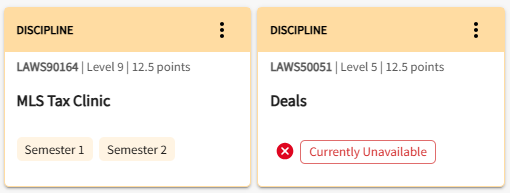
My Course Planner will display subject information for the next year once the Handbook has been published in mid-November.
-
My Course Planner uses data from the University Handbook to help you plan your course. It works well for most situations. But some complex course rules can't be set up in the planner yet. So, your plan might sometimes look a bit different from what you expected.
Some things you might notice include:
- A subject missing from your major, minor or specialisation
- A subject missing from your course
- Prerequisites showing as unmet even when they have been.
We're always looking to improve My Course Planner, and your feedback helps us do that. If something seems wrong, check the Handbook to see what should be there. Make sure you also check the above FAQs to troubleshoot.
Still unsure? Submit a web form to get your plan reviewed by a Course Planning Adviser. Make sure to include the unique URL of your plan so they can investigate.
Enrol after planning
Once you have planned your course you must enrol in your subjects using your study plan.
Need help with planning your course and subjects?
Submit an online enquiry or book an appointment with one of our course advisers, who can help you with course rules and structure, understanding subject pre-requisites, enrolling in to subjects, using the study plan, checking you're on track to graduate and more. Please add your My Course Planner link to any enquiry or appointment booking.